 Nodus Studio
Node editor
The node editor is where a clip becomes a vertical video. You cut pieces out of the gameplay — the minimap, the killfeed, a scoreboard — move them around, and stack them on top of each other. Every piece is a chain of small cards called nodes, joined by wires.
Open the node editor
The node editor only appears when you are making a vertical (9:16) video.
- Open a clip from your library.
- Above the player, switch the aspect from 16:9 to 9:16.
- The graph appears on the right, and the vertical preview on the left.
Every clip starts with the same three nodes:
- Source — the clip itself.
- Blend — stacks layers on top of each other. The source is already wired in as the Base layer, filling the whole frame.
- Output — what the vertical preview shows and what gets exported.
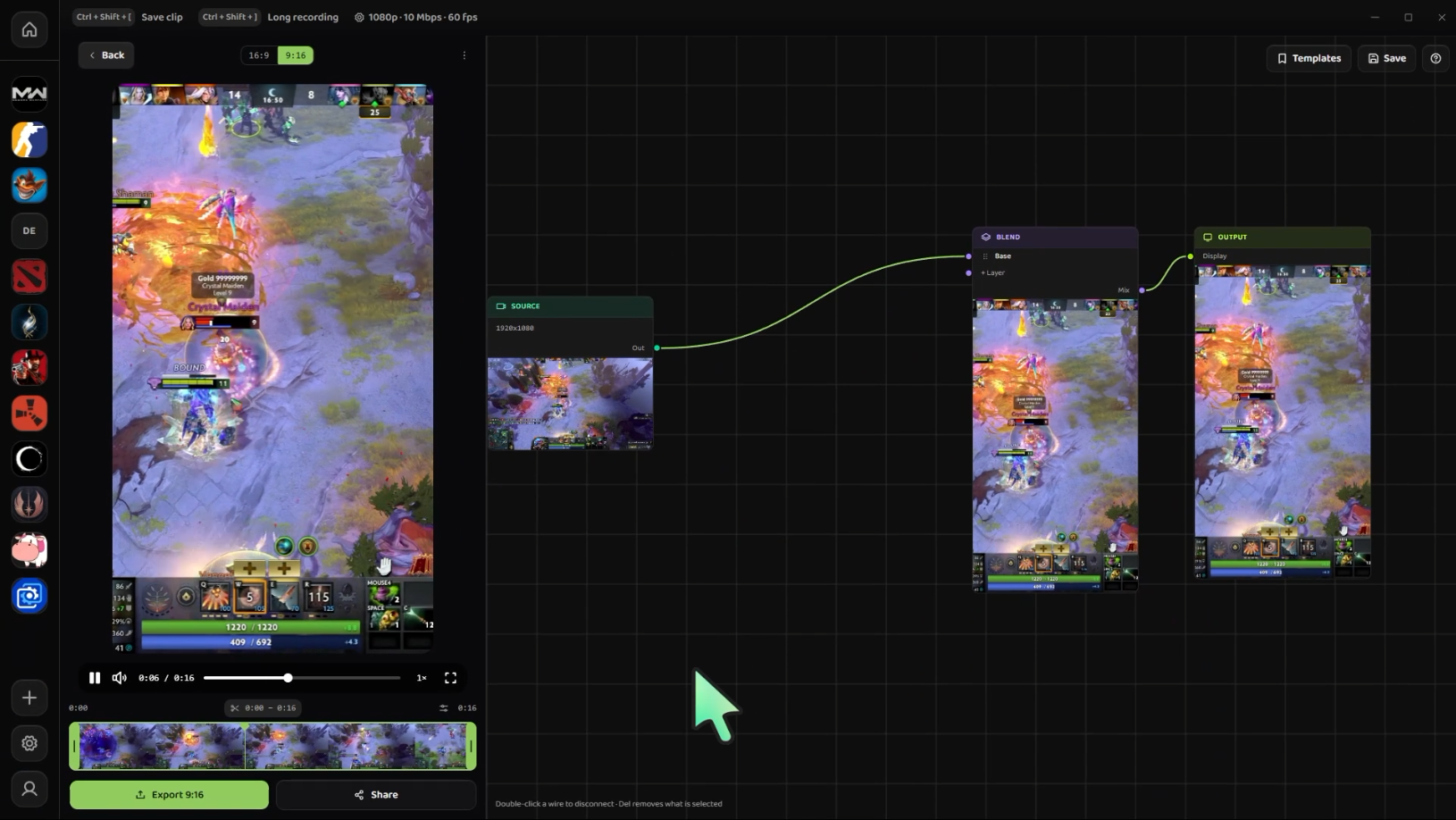
How a layer works
Almost everything you build follows one pattern:
Source → Mask → Crop → Transform → Blend
- Mask cuts out the shape you want, such as a round minimap. Skip it when a rectangle is enough.
- Crop trims the frame down to that region, so the layer is only as big as what it shows.
- Transform sizes and positions that region in the vertical frame.
- Blend puts it on top of the layers below it.
Each chain wired into Blend is one layer. Build one chain for the minimap, another for the killfeed, and Blend stacks them over the Base.
Tip: a layer wired into Blend without a Transform is stretched to cover the whole frame. Add a Transform whenever you want a layer smaller than the screen.
Adding nodes
There is no "add node" button. Nodes grow out of wires:
- Drag from an output port (the dot on the right side of a node).
- Let go on empty canvas.
- Pick a node from the menu. It appears where you dropped the wire, already connected.
The menu only lists nodes that make sense after the one you dragged from:
| From | Can connect to |
|---|---|
| Source | Crop, Mask, Filter, Transform, Blend |
| Crop | Mask, Filter, Transform, Blend |
| Mask | Crop, Filter, Transform, Blend |
| Filter | Crop, Mask, Transform, Blend |
| Transform | Blend |
| Blend | Output |
You can also connect two existing nodes by dragging from one port to another. If the wire refuses to snap, that connection is not in the table above — for example, a Transform cannot feed a Crop.
The nodes
Source
The clip you opened. It has one output and cannot be deleted. Wire it into as many chains as you like — each chain gets its own copy of the clip.
Mask
Hides everything outside the shapes you draw, keeping the frame size the same. Use it for shapes a rectangle cannot cut, such as a round minimap.
- Edit mask opens the mask editor, with three tools:
- Rectangle and Ellipse — drag on the frame to draw. Hold Shift for a square or circle.
- Pen — click to place points, click the first point to close the shape. Drag points afterwards to reshape it.
- Feather softens the edge of every shape.
- In the editor, Ctrl + wheel zooms, Space or middle-drag pans, and Del removes the selected shape.
Crop
Keeps one rectangle of the incoming frame.
- Top / Bottom / Left / Right trim each edge.
- Pick region opens a large view of the frame where you drag a box around what you want. This is much easier than the sliders.
Filter
Applies an effect to everything coming in. Right now that is Blur — useful for a blurred copy of the gameplay behind the sharp one.
Transform
Places a layer in the vertical frame.
- Name — the label shown on the layer's row in Blend. Name it ("Minimap", "Killfeed") so the layer list stays readable.
- Scale X / Scale Y — size. With Lock aspect ratio on, both move together so the layer is never squashed.
- Rotation — in degrees.
- X / Y — position.
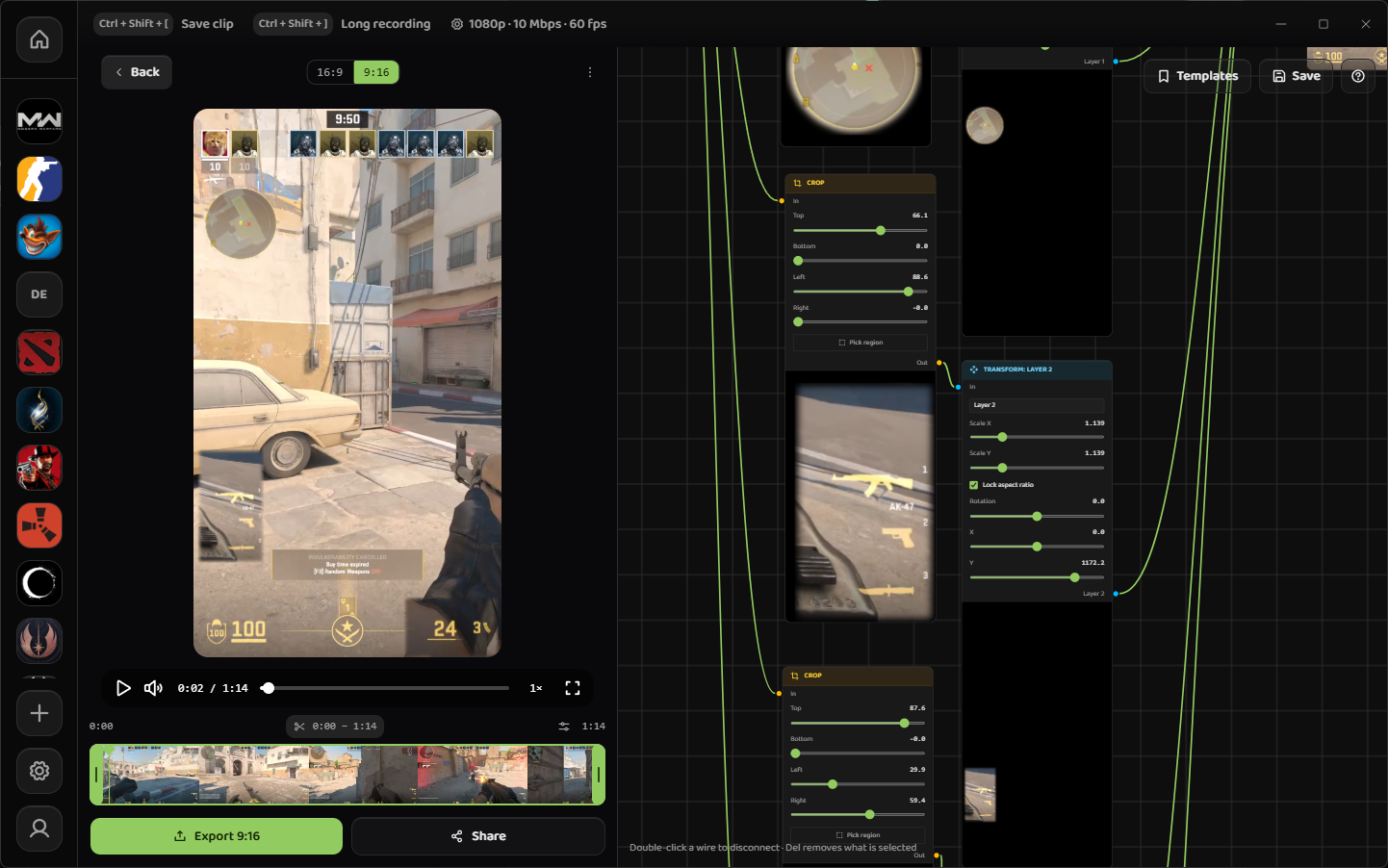
Blend
Stacks layers. Each wired layer gets a row.
- The top row is drawn on top. The Base layer normally sits at the bottom.
- Drag a wire onto + Layer to add a new layer.
- Drag rows by their handle to change the order.
Output
The end of the graph. Whatever is wired into it is what the preview shows and what Export writes.
Editing the graph
- Disconnect a wire: double-click it.
- Delete a node or wire: select it and press Delete or Backspace. The Source node cannot be deleted.
- Select several nodes: hold Shift and drag a box.
- Move around: drag empty canvas to pan, scroll to zoom.
Recipes
Minimap or killfeed
- From Source, drop a wire and add a Mask. Draw an Ellipse over the minimap.
- From the Mask, add a Crop. Use Pick region to box the minimap tightly.
- Add a Transform. Name it "Minimap", then scale it and move it into place.
- Wire the Transform into the existing Blend's + Layer.
The same steps work for the killfeed — skip the Mask and go straight from Source to Crop, since it is already rectangular.
Blurred background
Vertical frames are tall, so wide gameplay leaves empty space above and below. Fill it with a blurred copy:
- Delete the wire from Source to Blend's Base row.
- From Source, add a Filter and turn up Blur. Wire it into Blend — it fills the frame as the bottom layer.
- From Source again, add a Transform, scale it to fit the width, and wire it into Blend above the blur.
Templates
Once a layout works, save it and reuse it on every clip from that game.
- Save (top right of the graph) — give the layout a name and pick the game it belongs to.
- Templates opens your saved layouts, grouped by game with the game you are editing first.
- Click a template to apply it to the clip you have open. It replaces the current graph.
Troubleshooting
I can't see the node editor. Switch the aspect above the player to 9:16. The graph only exists for vertical videos.
The wire won't connect. That connection is not allowed — check the table in Adding nodes. Most often it is a Transform going anywhere other than Blend.
My layer doesn't show up. Check its row in Blend. If it is below the Base layer, the Base covers it — drag it to the top.
My layer fills the whole screen. It has no Transform. Add one between the last node and Blend, then scale it down.
Export is greyed out. A vertical export needs at least one layer reaching Output. Make sure Blend is wired into Output and has a layer.